 Steve
Surveys
Run mystery-shopping visits with a shopper questionnaire, a verifier questionnaire and a score you can trust.
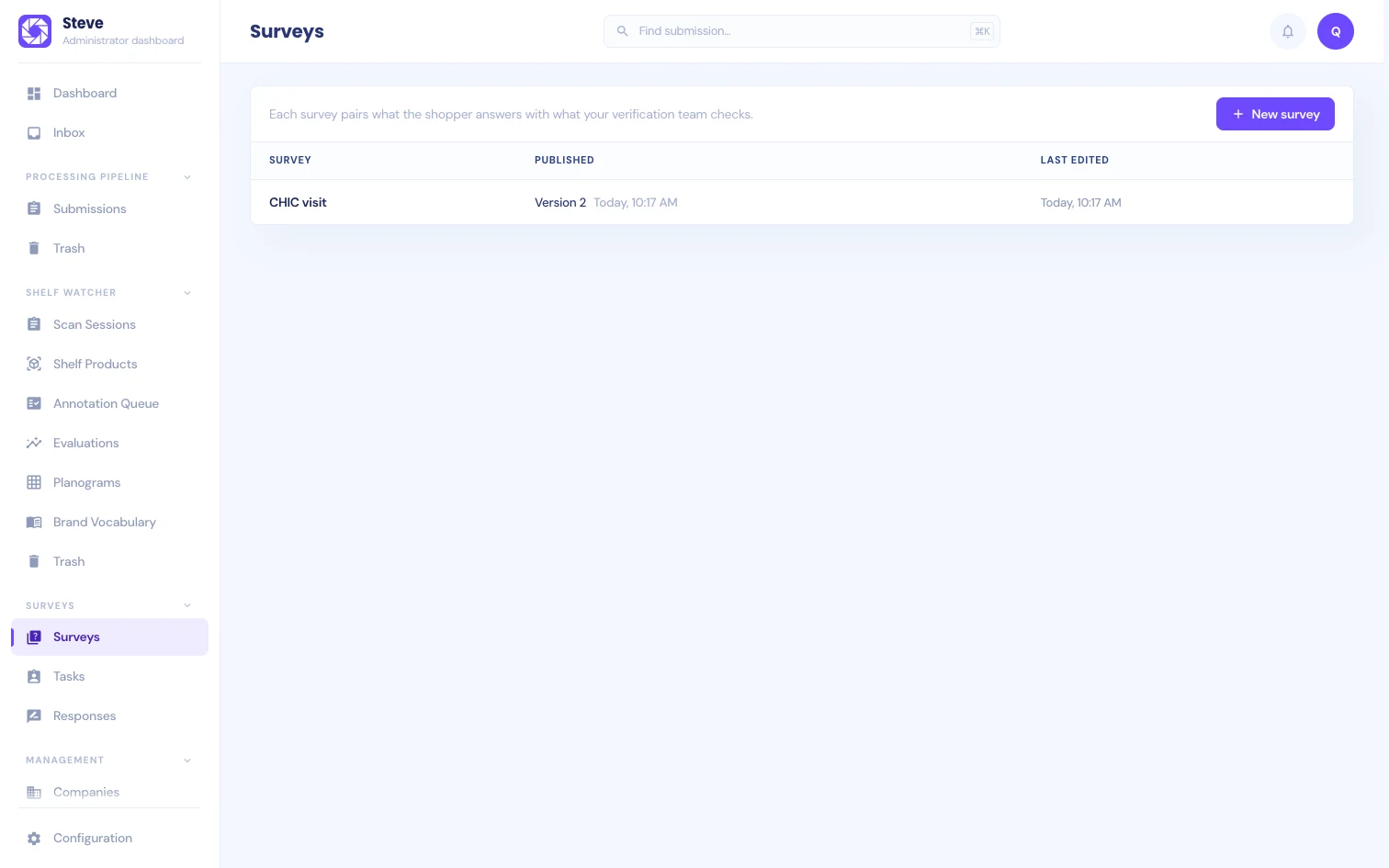
Surveys lets your agency send field users on store visits, collect their answers and evidence in the Steve app, and have your verification team check and accept each visit in the admin.
How a survey works
A survey has two questionnaires:
- Shopper questionnaire. What the field user answers in the Steve app during or after the visit. It can ask for photos and receipts. Only this questionnaire is scored.
- Verifier questionnaire. What your verification team answers in the admin after the field user sends the visit, for example whether the receipt matches the store and date. You build it on the Review tab.
A visit is one published survey assigned to one field user, with an optional store, a visit window and a short brief. A visit moves through these statuses:
| Status | What it means |
|---|---|
| Assigned | The field user can see the visit but has not started it. |
| In progress | The field user started the visit and is answering. |
| Submitted | The field user sent the visit. Steve has it, but nobody has accepted it. |
| Accepted | A verifier accepted the visit. Its answers and score are frozen. |
| Cancelled | An admin cancelled the visit. Its answers stay on record; it can't be accepted. |
Who does what
| Person | Where | What they do |
|---|---|---|
| Organization admin | Admin: Surveys and Tasks | Builds and publishes surveys, assigns and cancels visits |
| Verifier: a member with Review access to Surveys | Admin: Responses | Answers the verifier questionnaire and accepts visits |
| A member with View access to Surveys | Admin: Responses | Reads visits, answers and scores |
| Field user | Steve app | Completes the visits assigned to them and sends them |
Organization admins can also do everything a verifier does. See Reviewing visits for how to give members access.
Surveys and Submissions
Photos and receipts from a survey are ordinary submissions. When you add a Photo or Receipt question, you pick the workflow that reads it. Every photo the field user takes for that question becomes a submission of that workflow: Steve extracts its data, runs fraud checks and shows it in Submissions like any other capture.
The visit links to those submissions and shows their status and the data Steve read. Reviewing a receipt in Submissions and accepting the visit are two separate decisions. A receipt can be read and still waiting for document review while you accept the visit.
Evidence questions need the Submissions module and the company's access to the chosen workflow. Questions without evidence work on their own.
Turn Surveys on
Surveys is off by default for every organization. A platform administrator turns it on in the Platform console: open Organizations, choose the organization, and switch on Surveys under Modules.
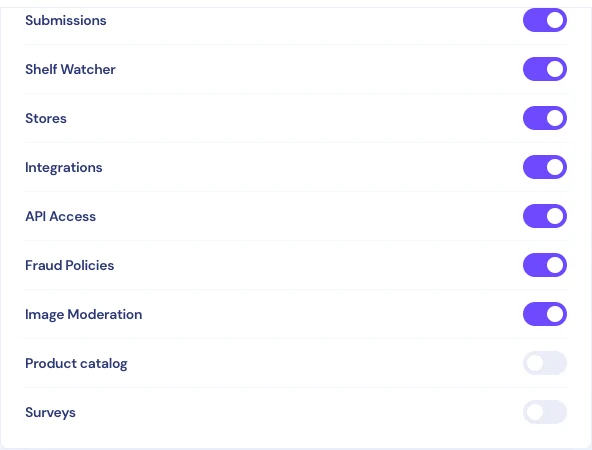
Once it is on, the admin shows a Surveys section with three pages: Surveys, Tasks and Responses.
When Surveys is off
Turning the module off hides it without deleting anything:
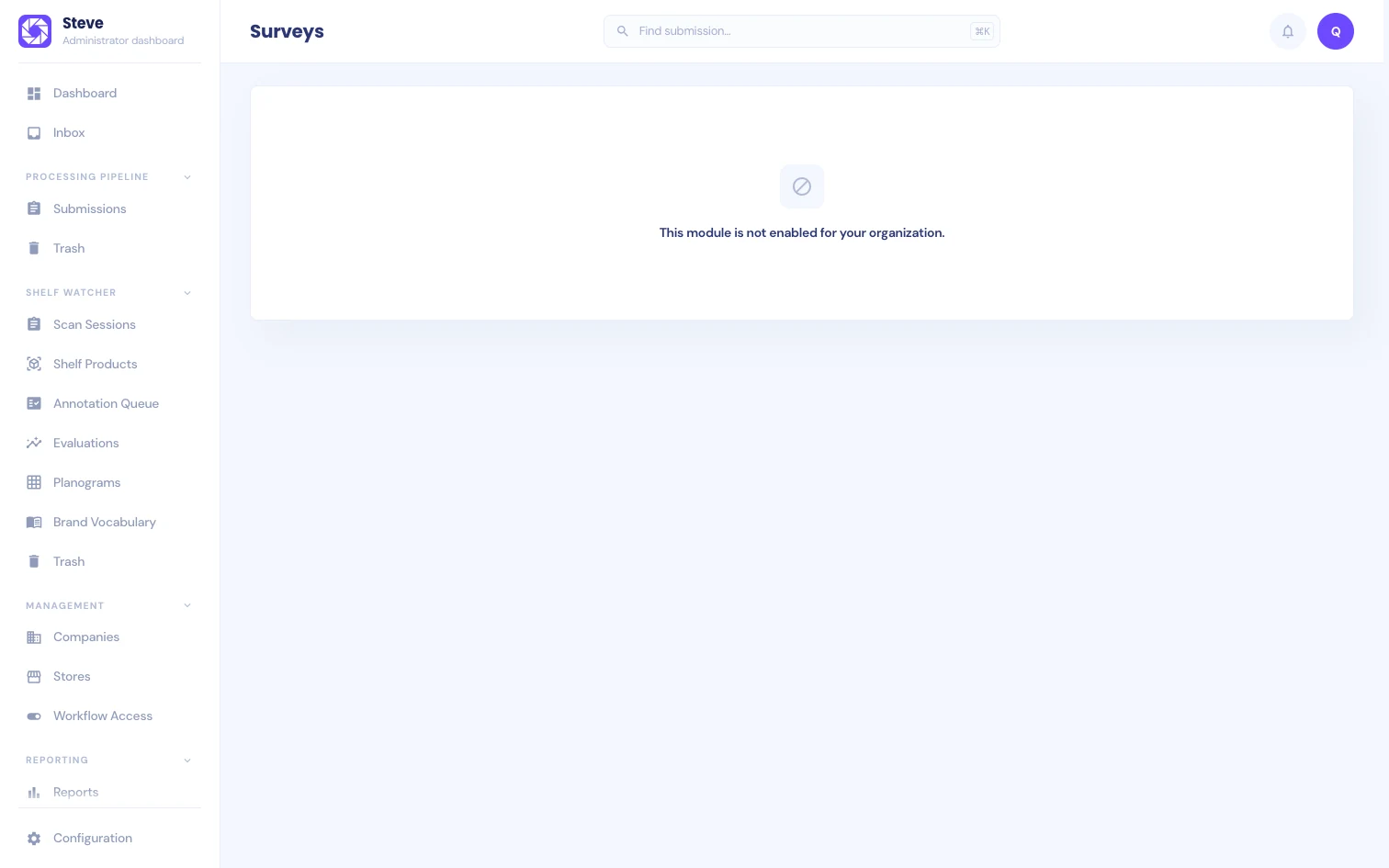
- The Surveys section disappears from the admin. A saved link to a survey page shows "This module is not enabled for your organization."
- Visits disappear from the field app. Answers already on a field user's phone stay there and are not reported as received.
- Steve refuses changes to surveys, visits and answers.
- Submissions keep working, including submissions that came from survey photos.
Turn the module back on and your surveys, visits and answers are there again.
In this section
Building a survey
Sections, question types, rules and the preview.
Scoring
Points, section weights and how Steve calculates the score.
Publishing and versions
What blocks publishing and how versions protect running visits.
Assigning visits
Give a published survey to a field user.
Reviewing visits
Check the answers and evidence, then accept the visit.
The field app
What field users see when they complete a visit.