Steve
Building a survey
Create a survey, add sections and questions, set rules and check it in the preview.
Organization admins build surveys on the Surveys page. Click New survey, give it a name and click Create survey. The survey stays a draft until you publish it, so you can change anything while you build.
The builder
The builder has five tabs:
- Questions: the shopper questionnaire.
- Review: the verifier questionnaire.
- Scoring: points and section weights for the shopper questionnaire.
- Settings: visit recording for the shopper questionnaire. See AI suggestions and visit recording.
- Preview: both questionnaires with the real rules and a live score.
The header shows the survey's name, its latest published version, the save state, Versions and Publish.
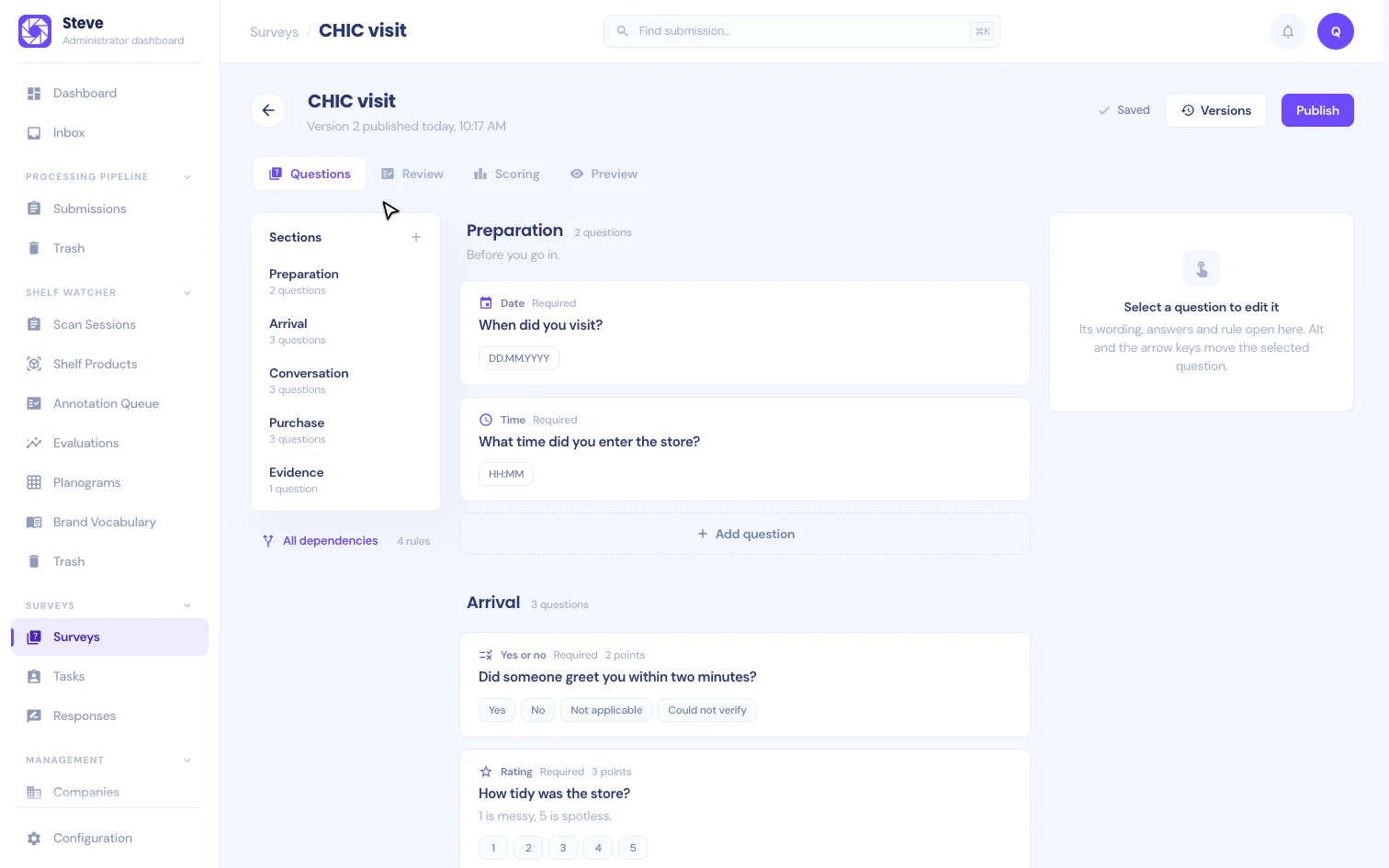
On Questions and Review, the section outline is on the left, the questions in the middle and the settings of the selected question on the right.
Sections
An empty shopper questionnaire offers Add the visit sections. It creates Preparation, Arrival, Conversation, Purchase and Evidence, the steps most visits follow. Rename or remove them later, or click Add a section to start from scratch.
Select a section to edit its Name and Description. The field user sees the description above the section's questions. A section can have its own rule under Show this section; see Rules.
To reorder sections or questions, use the arrows on the selected item, or press Alt + ↑ or Alt + ↓. Deleting a section also deletes its questions. Published versions keep them.
Questions
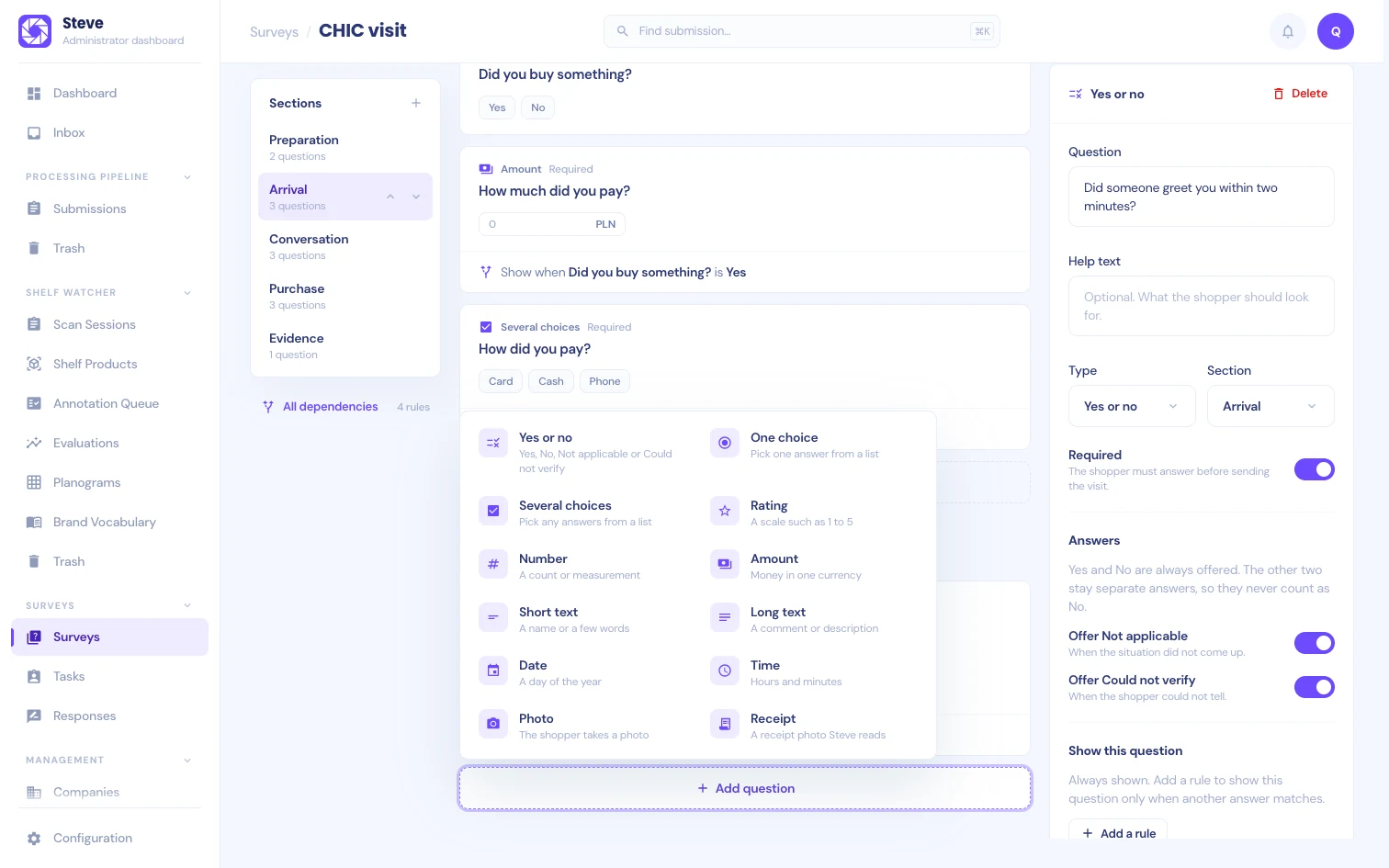
Click Add question at the end of a section and pick a type:
| Type | What the field user gives |
|---|---|
| Yes or no | Yes, No, Not applicable or Could not verify |
| One choice | One answer from a list |
| Several choices | Any answers from a list |
| Rating | A point on a scale such as 1 to 5 |
| Number | A count or measurement |
| Amount | Money in one currency |
| Short text | A name or a few words |
| Long text | A comment or description |
| Date | A day, typed as DD.MM.YYYY |
| Time | Hours and minutes, typed as HH:MM |
| Photo | A photo taken on the phone |
| Receipt | A receipt photo that Steve reads |
Photo and Receipt questions are only available in the shopper questionnaire.
Select a question to edit it in the settings panel:
- Question and Help text. The help text appears under the question, for example what the field user should look for.
- Type and Section.
- Required. In the shopper questionnaire, the field user must answer before sending the visit. In the verifier questionnaire, the verifier must answer before accepting it.
- AI can suggest (shopper questions, except photos and receipts). Steve may suggest an answer from the receipt, photos or recording, and the shopper confirms or changes it. It is on by default for yes or no, choice, number, amount, date and time questions. See AI suggestions and visit recording.
- Settings for the type: the answers of a choice question, the Lowest and Highest points of a rating scale, At least and At most for numbers and amounts, and the Currency of an amount, such as PLN.
Yes, No, Not applicable and Could not verify
A Yes or no question always offers Yes and No. It can also offer two more answers, each with its own switch:
- Offer Not applicable: the situation did not come up, for example no purchase was made.
- Offer Could not verify: the field user could not tell.
These stay separate answers. Neither one ever counts as No. See Scoring for how each one affects the score.
Rules
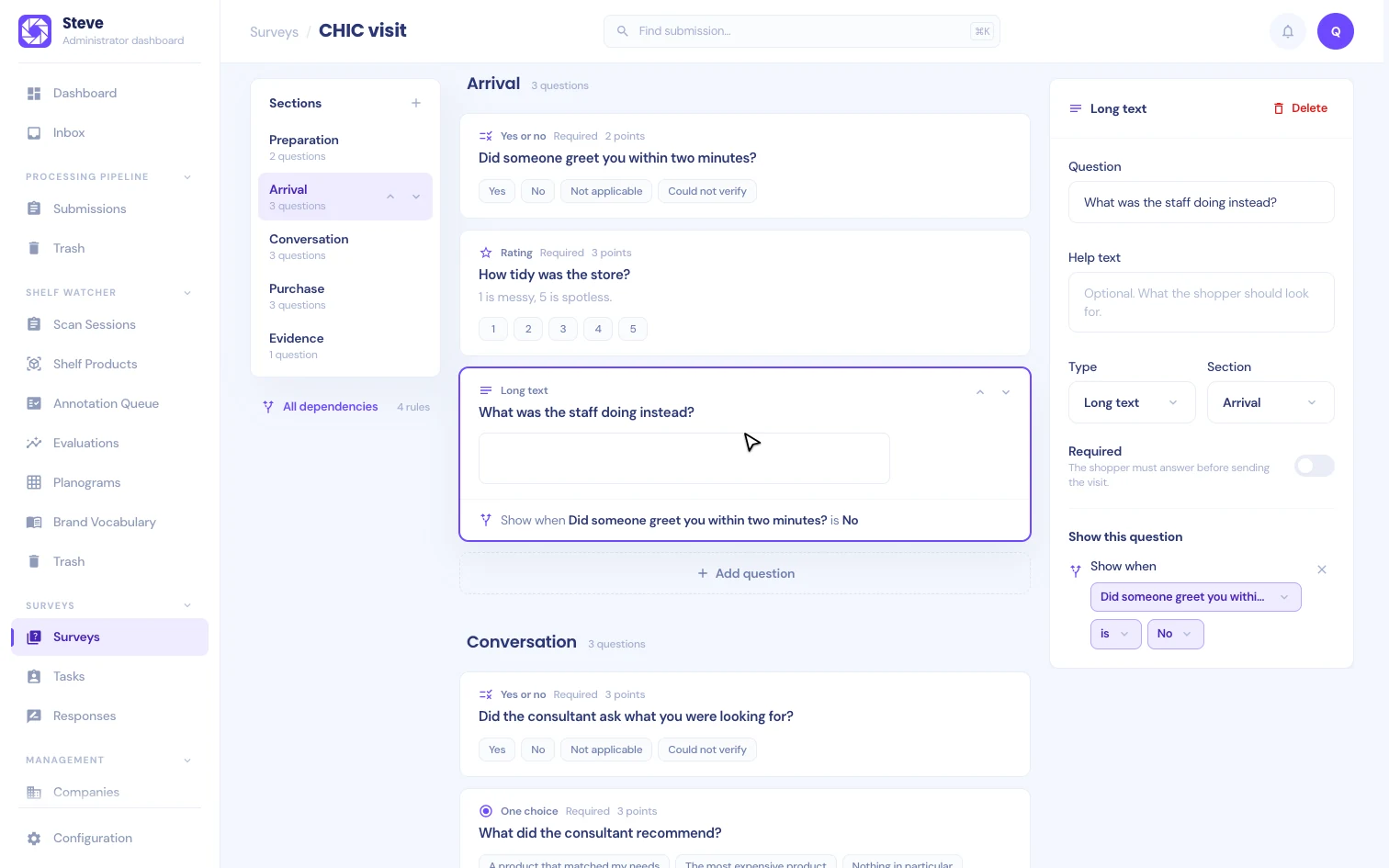
A rule shows a question or section only when another answer matches. Under Show this question (or Show this section), click Add a rule and complete the sentence: Show when [question] [condition] [answer].
The conditions depend on the type of the question you base the rule on:
| Based on | Conditions |
|---|---|
| Yes or no, One choice | is, is not, is any of, is answered |
| Several choices | includes, does not include, includes any of, is answered |
| Rating, Number, Amount | is more than, is less than, is answered |
| Short or long text, Date, Time, Photo, Receipt | is answered |
Each question or section has at most one rule, and a rule can only point at a question in the same questionnaire. The rule appears as a sentence under the question, so you can read the logic without opening anything.
Click All dependencies under the section outline to see every rule in the questionnaire, grouped by the question that decides it. You never set an order: Steve works out which answers to check first.
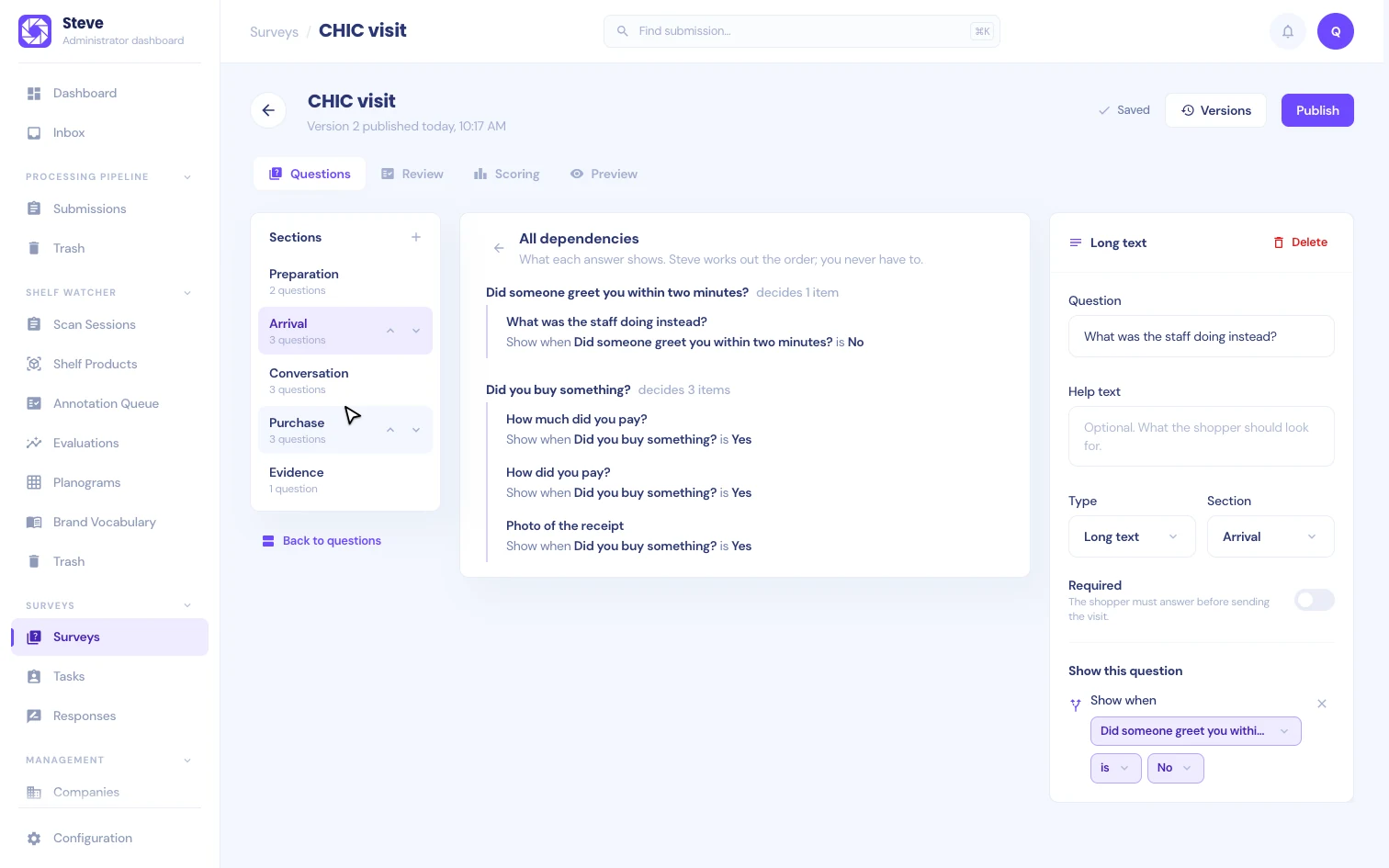
How hidden questions behave:
- A hidden section hides all its questions.
- A question whose rule depends on a hidden question is hidden too.
- If an answer changes and a question becomes hidden, Steve keeps its answer but ignores it: it is not required and does not count toward the score.
Deleting a question also removes the rules that depend on its answer. The confirmation tells you how many.
Photo and receipt questions
A Photo or Receipt question asks the field user for one or more photos. In its settings:
- Read it with: the workflow that processes each photo. It must be active, accept photos and read document photos. Workflows that don't qualify are listed with the reason and can't be picked.
- At least and At most: how many photos the field user takes, from 1 to 10.
Each photo becomes a submission of that workflow. The field user keeps answering while Steve reads it.
If the workflow delivers its results downstream on its own, the publish checklist warns you. Turn that delivery off when only accepted visits should reach your client.
Saving
The builder saves about a second after you stop typing. The save state in the header shows where your changes are:
| State | What it means |
|---|---|
| Saved | Your changes are stored. |
| Saving… | Steve is storing your latest change. |
| Couldn't save | The save failed. Click Retry. |
| Changed elsewhere | Someone else changed this questionnaire. Click Reload to see their changes. |
Steve never overwrites someone else's changes without telling you.
Preview
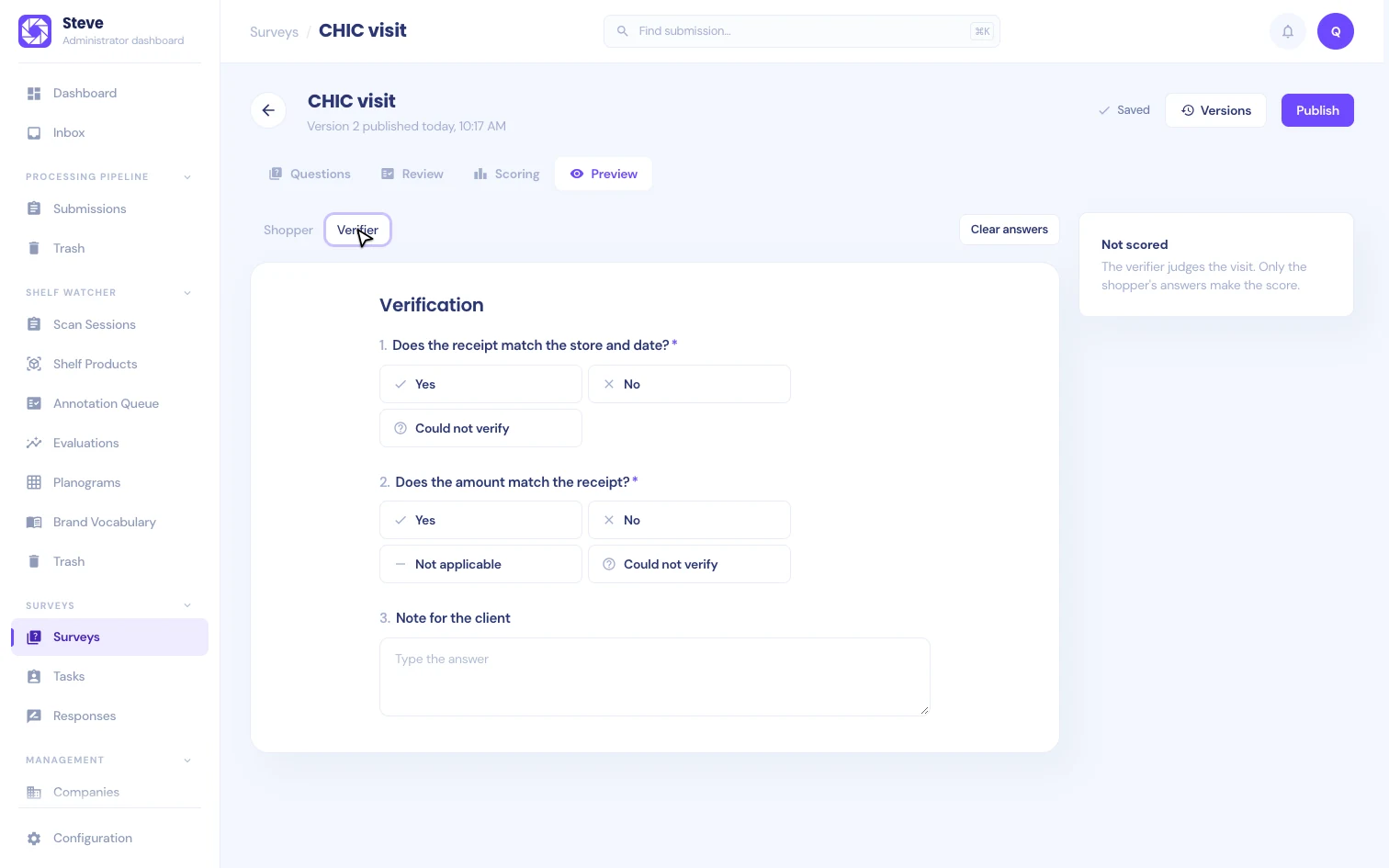
The Preview tab runs the same rules as real visits. Switch Preview as between Shopper and Verifier, and answer the questions as they would.
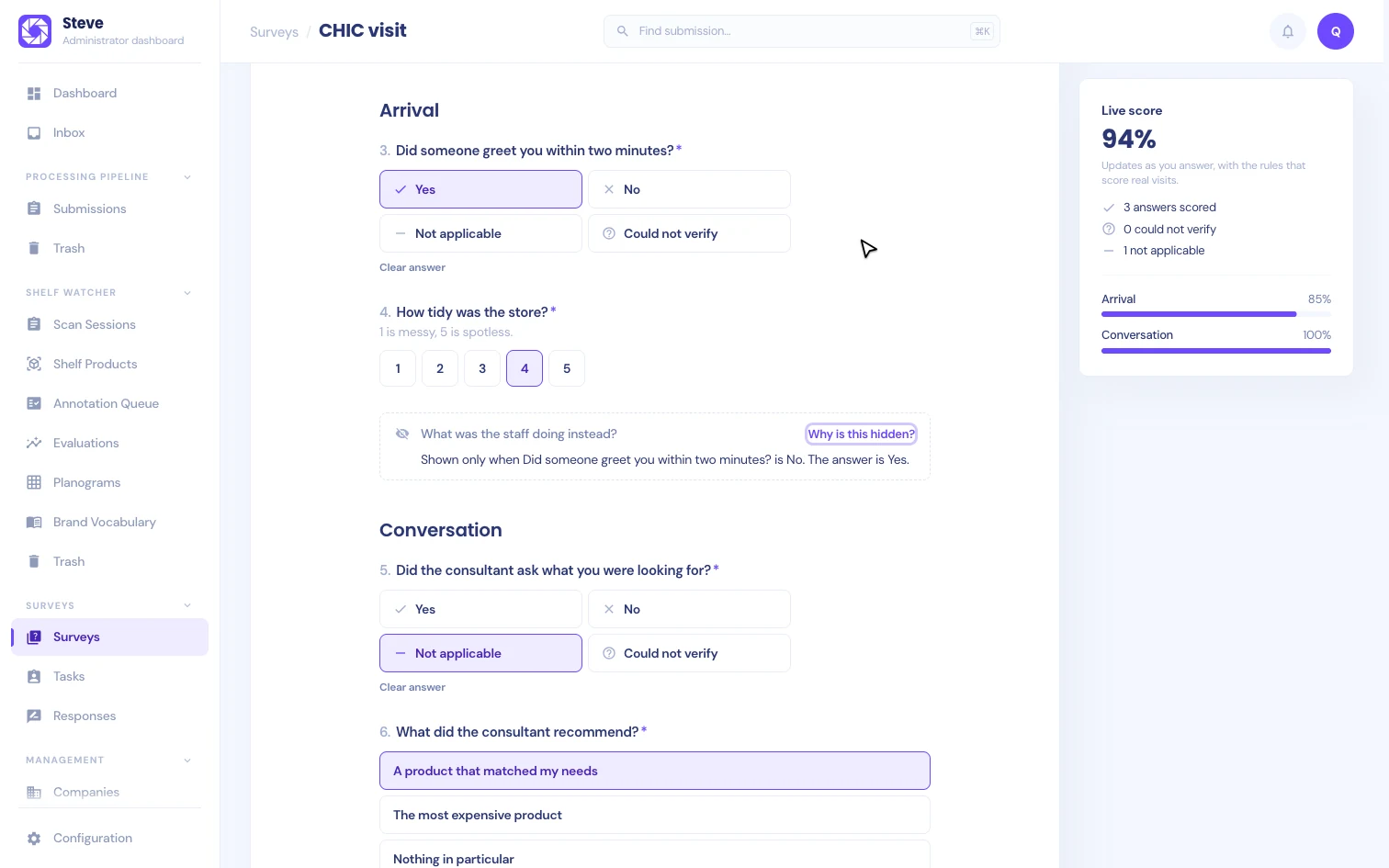
- Questions appear and disappear as their rules match. To see them, switch on Show hidden questions (the switch counts them, for example "Show 2 hidden questions"), then click Why is this hidden? on a question for the reason, for example: "Shown only when Did someone greet you within two minutes? is No. The answer is Yes."
- The Live score next to the shopper questionnaire updates as you answer, with the counts of scored, unverified and not applicable answers.
- The verifier questionnaire is not scored.
- Clear answers starts over. Preview answers are never saved.