 Steve
Assigning visits
Give a published survey to a field user of a company, and follow the visit's status.
Organization admins assign visits on the Tasks page under Surveys. A visit gives one published survey to one field user of one company.
The Tasks page
Pick a company at the top. The table lists that company's visits with the survey and version, the field user, the store, the visit window and the status. Filter by status with All statuses.
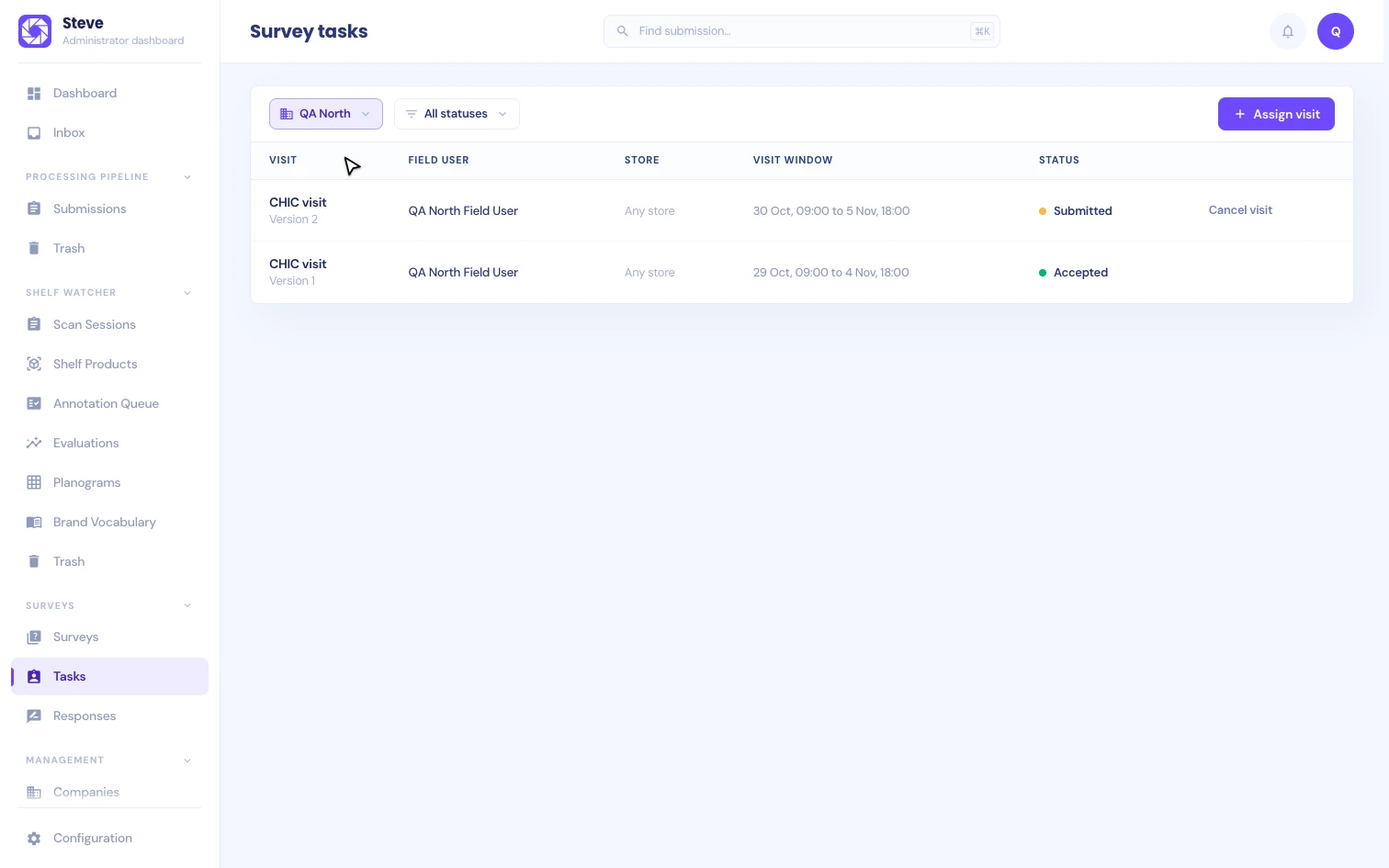
Assign a visit
Click Assign visit and fill in:
- Survey: a published survey. The list shows the version the visit will get, for example "CHIC visit (version 2)". Surveys that aren't published yet can't be picked.
- Field user: who makes the visit. Only active field users who work for the selected company are listed, including people who also work for other companies of your organization. The visit counts for the selected company.
- Store (optional): a store the company covers, or Any store.
- Visit from and Visit by: the visit window. It must end after it starts.
- Brief (optional): what the shopper should do or ask about, for example "Ask about the extended warranty."
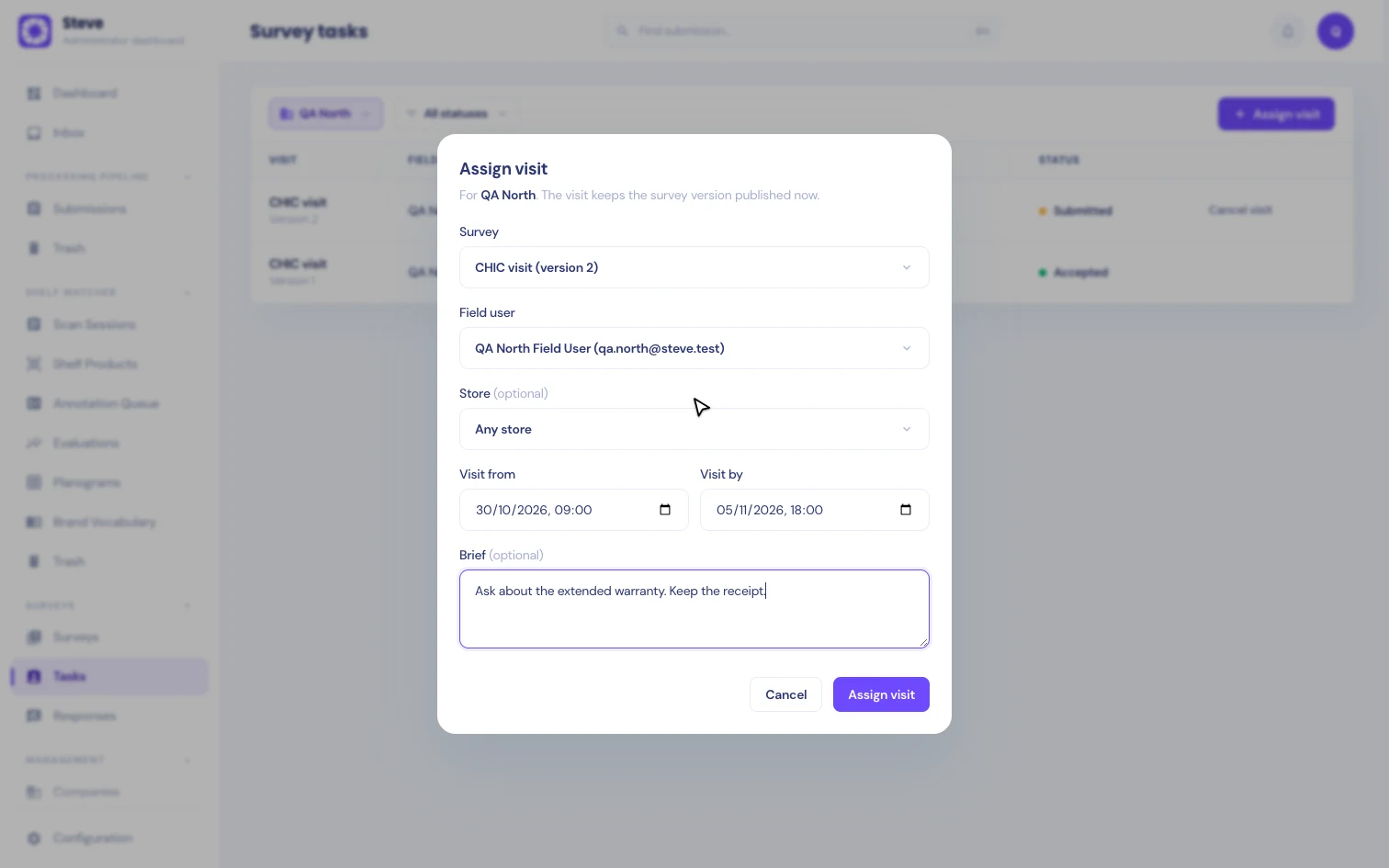
Click Assign visit. The visit appears in the field user's app right away. It keeps the survey version published now, even if you publish a new one later. See Publishing and versions.
If the survey has photo or receipt questions, the company needs access to their workflows. Steve refuses the assignment otherwise.
Statuses
| Admin status | What the field user sees | What it means |
|---|---|---|
| Assigned | Not started | The visit is waiting for the field user. |
| In progress | In progress | The field user started the visit. |
| Submitted | Received by Steve, not accepted yet | The field user sent it. It waits for a verifier. |
| Accepted | Accepted | A verifier accepted it. Answers and score are frozen. |
| Cancelled | The visit is gone from their list | You cancelled it. |
Cancel a visit
Click Cancel visit on its row and confirm. You can cancel any visit that isn't accepted.
The field user no longer sees the visit in the app. Answers already sent stay on record, but a cancelled visit can't be accepted. To give the field user a newer version of the survey, cancel the visit and assign a new one.
Current limits
- Steve shows the visit window to the field user but does not stop them from answering outside it.
- A visit goes to one field user, who answers it in their own app. Submitting on someone else's behalf, shopper rotation checks and bulk assignment are not available yet.